


Table Of Contents
- Why Keeping Your LinkedIn Resume Updated Matters
- All The Places Your Resume Lives On LinkedIn
- Featured Section On Your Profile
- Media Section Under About Or Experience
- LinkedIn Easy Apply System
- How To Add Your Resume To LinkedIn
- Method 1: Add Your Resume To The Linkedin Featured Section
- Method 2: Upload Your Resume When Applying Through LinkedIn Easy Apply
- Method 3: Add Your Resume To The About Or Experience Section
- How Can You Upload Your Resume From Your Mobile Device?
- Step-by-Step: How To Update Your Resume Across LinkedIn
- Updating Your Resume in The LinkedIn Featured Section
- Updating Your Resume in Media Under About or Experience
- Updating Your Resume in LinkedIn Easy Apply
- Managing Resumes in Job Application Settings
- How To Delete Resume From Linkedin? Here Are The Easy Steps!
- How To Remove A Resume From Your Profile Page
- Pro Tips To Keep Your Resume And LinkedIn Profile In Sync
- 1. Align Headline, Summary, And Work History
- 2. Go Into More Detail Using Your Resume
- 3. Keep Both Updated
- Common Resume Update Mistakes To Avoid On LinkedIn
- 1. Keeping An Old Resume On Your Profile
- 2. Updating Your Resume, But Not LinkedIn
- 3. Uploading Poorly Formatted Or Incomplete Resumes
- How AI Can Help You Edit And Refresh Your Resume
- 1. AI Resume Builders
- 2. AI Cover Letter Generators
- How To Smartly Share Your Resume On LinkedIn?
- 1. Get To Know LinkedIn's Privacy Risks
- 2. File Size And Format Limits
- 3. Your Resume Should Be Current
- 4. Make Your Resume Complement Your Profile
- 5. Personalise Your Resume
Mastering Linkedin: How To Update Resume In LinkedIn For Career Advancement
Last Updated on: May 30th, 2026
Nowadays, your resume and LinkedIn profile are usually the first things the recruiter sees when the job market is very competitive.
They collectively narrate your professional journey, who you are as a professional, your skills and experience, and your next move.
However, if the resume section of your LinkedIn profile is outdated, the story might look incomplete or even confusing.
If you are actively looking for a job or, on the other hand, are just open to new opportunities, I bet you have already uploaded your resume to LinkedIn.
Perhaps it is linked to your profile, used when you apply for jobs with Easy Apply, or both. But the thing is, people’s careers evolve.
You take on new roles, learn new skills, and achieve new things, and your resume has to tell that story, too.
Actually, it might be quite a bit more crucial than you think to keep your resume updated on LinkedIn, as well as to cultivate a robust network of LinkedIn followers for enhanced professional visibility.
For example, when you use Seventhway – find premium jobs now! It enables recruiters to see the most up-to-date version of you, thereby increasing your chances of getting noticed.
In this article, we’ll explain step by step the right way to update your resume on LinkedIn.
Have you never attached a resume before? First, read our article on how to add your resume to LinkedIn.
Why Keeping Your LinkedIn Resume Updated Matters
Think of your resume and LinkedIn profile as a double-sided coin. Recruiters usually look at them at the same time to get a complete understanding of your skills and experience.
Discrepancies between the two can cause suspicion. An old resume alongside a refreshed LinkedIn profile might puzzle hiring managers and damage your trustworthiness.
It’s very critical to stay consistent, not only because LinkedIn utilizes your uploaded resume for Easy Apply.
If that resume is older, you might be submitting applications with incomplete or out-of-date information, which would cost you real chances.
Here are some of the ways that updating your resume on LinkedIn can serve you:
- Explicitly reveal your most recent position and duties.
- Emphasize new skills, certifications, or accomplishments.
- Bring your resume to a point where it reflects the roles you are presently aiming at.
- Avoid confusion during recruiter reviews.
It doesn’t matter if you have changed jobs, acquired new skills, or changed career directions.
Your resume should be the document that evidences this.
By periodically updating it, you let recruiters see the very best, most up-to-date version of you.
All The Places Your Resume Lives On LinkedIn
Your resume can be stored in more than one place on LinkedIn. So, before learning how to update your resume on LinkedIn, it’s important to know where it lives. Updating the wrong version can mean recruiters still see outdated information.
Here are the main places to check:
Featured Section On Your Profile
This section highlights your best work. Many people upload their resumes here, so anyone visiting their profile can easily download it.
Media Section Under About Or Experience
Your resume may be attached to your About summary or to a specific job role. This helps support a certain part of your career story.
LinkedIn Easy Apply System
This is the most common and often forgotten spot. LinkedIn saves the resume you use for Easy Apply and may reuse it for future applications—even if it’s outdated.
Checking and updating all these sections ensures recruiters always see your latest resume.
How To Add Your Resume To LinkedIn
Adding your resume to LinkedIn is a great way to make it easy for recruiters and connections to see your full professional story.
There are a few easy ways to do this, and most start right from your LinkedIn profile.
Method 1: Add Your Resume To The Linkedin Featured Section
One of the most effective ways to ensure that your resume gets noticed by recruiters is to add it to the Featured section on your LinkedIn.
This area is located right at the top of your profile, so anyone who checks in can immediately find and download your resume.
Start by opening your LinkedIn profile and clicking on Add profile section. Select Featured from the first box, then Media from the triangle. The resume file you want to add is on your computer.
The PDF file is the best option because it maintains formatting in a neat, professional manner.
After uploading, give it a straightforward title like ‘Resume Marketing Manager’ so people have no doubt what they are looking at.
This approach is fantastic if you want recruiters to be able to see your entire work history at a glance without having to message you first.
It also comes in handy when you are looking for a job. A recruiter will often take a quick look at your profile before making their initial contact.
Some hints to remember:
- Ensure your resume is consistent with your LinkedIn profile
- Get rid of earlier versions to stay clear of mix-ups
- Refresh the document every time you get a new job or acquire new skills
This choice allows you to decide completely what the recruiters get to see and, at the same time, makes sure that your resume is the first thing on your profile that the visitors see.
Method 2: Upload Your Resume When Applying Through LinkedIn Easy Apply
The Easy Apply feature is one of LinkedIn’s most used job-finder tools. When you do this, LinkedIn asks you to submit your resume as part of the application.
After you’ve uploaded it once, LinkedIn keeps your resume on file and may use it for future Easy Apply job applications.
If you want to go down this route, find a job and hit the Easy Apply button. You will be asked to bring up your resume from your device.
After that, LinkedIn keeps that document in your account so that it will be quicker for you to apply next time.
This method is handy, but it is also where most people go wrong.
Since LinkedIn keeps reusing the same resume, you may end up applying with an expired one.
It can definitely be a disadvantage if the advertisement highlights certain skills or experiences that you have recently acquired.
- Be prompt on double, checking what resume LinkedIn has chosen
- If your work history has changed, don’t hesitate to change the file
- Introduce your resume nicely for the vacancies you are targeting
Easy Apply is a great time-saver, but it can only benefit you if you have an updated, relevant resume.
Method 3: Add Your Resume To The About Or Experience Section
Another way to add your resume is by attaching it to your About or Experience section as media.
If you want your resume to be a support for a particular role or career summary, this method is the right one for you.
Navigate to your profile and scroll down to the About section or a particular job under Experience.
Click the Add media icon, then upload your resume file. This way, your resume will be placed right next to the content that describes your background.
You can use this option when:
- Firstly, you want to give prominence to a resume that has been specifically tailored to a role
- Secondly, you are illustrating your career development or accomplishments
- Thirdly, you want your resume to have a context, not just the file
On the other hand, this method is less visible than the Featured section, so some recruiters may overlook it.
This is why it is mainly a good idea to use it in combination with another method.
It is necessary to:
- Make sure the resume is relevant to the role it is attached to
- Have clear and professional file names
- Delete old or irrelevant resumes
When properly used, this method contributes to a better, more focused career story.
How Can You Upload Your Resume From Your Mobile Device?
Uploading your resume to the LinkedIn app is very easy. First, grab your phone and open the app to get started!
Next, you need to take a look at the bottom-right corner and tap your profile picture. After that, find the settings gear icon in the top left corner and tap it.
Now, you can scroll down a bit until you find the “Data privacy” section. Once you are there, look for “Job application settings” and click on it.
Finally, you need to tap “Resumes.” After that, you need to press the “Upload resume” button to select your file from your phone.
You just need to follow all of these basic steps. This way, your profile stays up to date with new opportunities. This simple trick saves you time when applying for your dream jobs on the go.
Step-by-Step: How To Update Your Resume Across LinkedIn

Now that you know where your resume can be stored on LinkedIn, let’s walk through the exact steps to update it in each location.
This ensures recruiters always see the most recent and accurate version of your resume.
Updating Your Resume in The LinkedIn Featured Section
If your resume appears in the Featured section of your profile, updating it is quick and straightforward:
- From the LinkedIn homepage, click your profile picture and select View Profile.
- Scroll down to the Featured section, usually located below your About summary.
- Click the pencil (edit) icon to open the edit window.
- Locate your existing resume file and click Remove or the trash icon to delete it.
- Click Add media, upload your updated resume from your computer, and select Save.
This replaces the old file and keeps your profile up to date for visitors.
Updating Your Resume in Media Under About or Experience
If your resume is attached as media to your About section or a specific Experience entry:
- Go to your LinkedIn profile.
- Navigate to the section where the resume is attached.
- Click the edit (pencil) icon for that section.
- Remove the outdated resume file.
- Select Add media, upload your latest resume, and click Save or Apply.
This ensures the resume matches the role or summary it supports.
Updating Your Resume in LinkedIn Easy Apply
LinkedIn often reuses the last resume you uploaded for Easy Apply jobs, so it’s important to check before submitting:
- Start an Easy Apply job application.
- Review the pre-filled resume carefully.
- Click Change Resume or Upload Resume to replace it with your updated version.
Managing Resumes in Job Application Settings
For full control over stored resumes:
- Click the Jobs tab in the top navigation bar.
- Open Job Application Settings.
- Review saved resumes, delete outdated ones, and upload your most current file.
Doing this regularly helps you avoid accidentally applying with an old resume.
How To Delete Resume From Linkedin? Here Are The Easy Steps!
Cleaning up your old files on LinkedIn is super simple.
- First, click your profile picture at the top of the screen, then head to your Settings & Privacy page.
- Next, look at the menu on the left side and click on Data Privacy. After that, scroll down a bit until you spot Job application settings.
- Once you are there, you will see a clean list of all your uploaded files. To remove one, click the three dots next to that document, then hit Delete.
Do not worry. Doing this will not change or hurt any job applications you have already sent to companies.
How To Remove A Resume From Your Profile Page
Additionally, you might have pinned your resume directly to your main profile page as a public post.
If you did this, just go to your profile and scroll down to your Featured or Media section.
Then, click the little pencil icon to edit the section, locate the file, and press remove.
Once you follow these quick steps, your personal digital presence will be fresh, safe, and ready for great new career opportunities.
Pro Tips To Keep Your Resume And LinkedIn Profile In Sync
Updating your resume on LinkedIn is absolutely necessary, but the impact will be at its maximum if your resume and LinkedIn profile match.
Picture them like a duo. Each one strengthens the other. This is helping recruiters to grasp your career narrative more rapidly.
To ensure everything stays in harmony, concentrate on these key areas:
1. Align Headline, Summary, And Work History
Your LinkedIn headline and About section should align with the summary on your resume.
The job titles, company names, and dates should match exactly. Even minor differences can cause a recruiter’s doubt.
2. Go Into More Detail Using Your Resume
Your LinkedIn profile is a good place for key points. Your resume is the place where you go the extra mile.
Use it to demonstrate your clear achievements, figures, and skills. Consider LinkedIn a teaser, and your resume the full story.
3. Keep Both Updated
Make a habit of reviewing your resume and LinkedIn profile monthly, quarterly, or every 6 months.
This will allow you to quickly add new skills, roles, or achievements.
Keeping both aligned not only strengthens your profile but also prepares you for any new opportunity.
Common Resume Update Mistakes To Avoid On LinkedIn
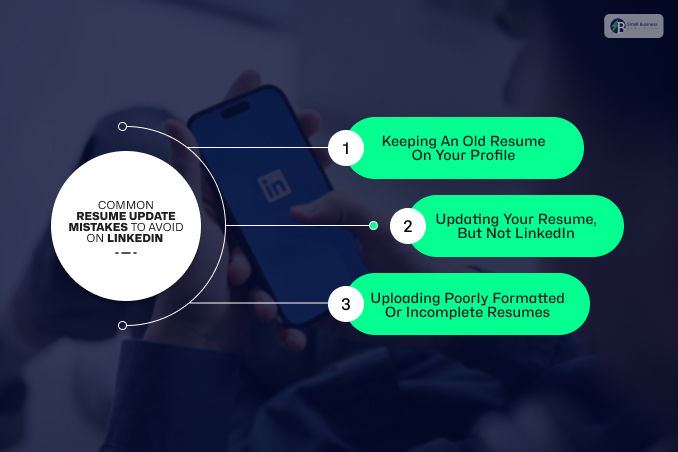
Managing your resume on LinkedIn might seem simple, but small mistakes can significantly damage your job search. It is always helpful to know ahead of time what to avoid so that you do not waste your time and get noticed for the right reasons.
Here are some common errors to watch out for:
1. Keeping An Old Resume On Your Profile
If you are a job seeker, an old resume might make you seem unprepared or less competent. Recruiters can thus conclude that you have not updated your skills or experience.
2. Updating Your Resume, But Not LinkedIn
Let’s say you have recently updated your resume with a new job, skill, or accomplishment. Finally, your LinkedIn profile and Easy Apply resumes should be updated as well.
The two of them should always be synchronized.
3. Uploading Poorly Formatted Or Incomplete Resumes
There is no doubt that a professional resume must always be uploaded. In addition, you should
- Proofread the text,
- Check the layout for clarity,
- Update the contact details.
Missing or messy information can result in a rejection without a second thought.
Using the same resume for every job. Fast Apply is a wonderful tool, but a one-size-fits-all resume
How AI Can Help You Edit And Refresh Your Resume
Don’t worry about updating your resume. In fact, with the help of AI-powered tools, you can turn a resume update session into a low-energy, quality experience. Check out the following ways AI can work for you:
1. AI Resume Builders
One of the great things about Careerflow Resume Builder, for example, is that it lets you effortlessly update your resume’s design and layout.
Not only that, but you also get to continuously sharpen your bullet points and keep the overall formatting clean and consistent.
Without rereleasing the entire document, you can quickly put the spotlight on your skills and accomplishments.
2. AI Cover Letter Generators
If catching an employer’s attention to get selected for the interview is the ultimate goal, then a strong cover letter is an indispensable part of the package.
AI cover letter writers not only analyze a job description but also the applicant’s resume to generate a tailor-made letter.
Moreover, this little trick not only saves you time but also lets you tailor your message to each role. They just allow you to focus more on the core of your message, t
AI has been proven very useful, especially for major tasks. This means you benefit greatly.
How To Smartly Share Your Resume On LinkedIn?
Posting your resume on LinkedIn is merely a stepping stone. It is imperative that your resume reflect your LinkedIn profile.
This way, you can professionally elevate yourself in recruiters’ eyes. To aid you in achieving great results, here are five simple tips:
1. Get To Know LinkedIn’s Privacy Risks
Initially, consider your online personal safety. Naturally, resumes contain your phone number and home address.
That’s why relinquishing them publicly can often feel a bit risky. Therefore, you should only reveal them when you are directly applying for jobs.
2. File Size And Format Limits
One more thing, your file must be less than 5MB. Besides, always save it as a PDF or Word document to ensure recruiters can open it without issues.
Besides, title the file professionally with your full name rather than a confusing title like “final_draft”.
3. Your Resume Should Be Current
Besides, you will want to make sure that your copy gets a regular makeover. Utilising an outdated document can leave hiring managers puzzled and send the wrong message.
If you have recently changed jobs or acquired new skills, the best thing to do is to update your profile and replace the old resume at once!
4. Make Your Resume Complement Your Profile
Moreover, don’t forget that your profile and paperwork have to be a good match.
As a consequence, job titles, employment dates, and main responsibilities featured in both should be identical.
Such constancy will earn you a higher level of trust among employers, and they will also consider your experience as real.
5. Personalise Your Resume
Lastly, there is nothing wrong with having a little tailor-made element in your text for the job you are targeting.
For this, merely use clear, industry-specific keywords that match the job description.
Through this, you will be able to talk in the language of recruiters and easily demonstrate that you are just the right person for the job.


