Table Of Contents
- What Do You Need To Know Before Restarting Your Graphics Drivers In Windows 11?
- A Quick Heads-Up Before You Start
- The Brand Plays A Role
- What Are The Methods You Can Use To Restart Graphics Drivers?
- Superfast Keyboard Trick
- Using Device Manager For More Control
- The Pro Method: PowerShell
- Reason Why You Need To Reset Your Graphics Card Drivers!
- The Quick Keyboard Shortcut
- Using Task Manager
- Power Up With PowerShell
- Vendor Software Settings
- How Can You Install And Reinstall The Graphics Card Driver
- What If The Graphic Card Still Shows Up?
- How Can You Troubleshoot The Display Issues?
- The Quick Fix
- Reset The Graphics Driver On Windows 10 And 11
- More Troubleshooting
- Can I Reset The Graphics Driver Through The Keyboard?
- Using Device Manager
- Why The Beep?
- How To Deal With The Flickering Screen?
- When And Why Do You Need To Refresh The Graphics Driver?
- Using The Right Tools
Screen Frozen? Try This 3-Second Trick To Reset Your Graphics Driver Without Restarting!
You know how annoying glitches can be on a PC. They just waste all your time and even drive you crazy!
One of the biggest headaches is display trouble! This is like a frozen screen, weird lines, and even blurry pictures.
The fastest trick is to learn how you can reset the graphics driver software instead of those complicated fixes.
You can simply press Win+Ctrl+Shift+B on your keyboard. After that, your screen will flicker for a second! And you are done.
It is the easiest way to clear up bugs without restarting your whole computer. Next time your screen acts up, try this first to save yourself a massive headache.
Read this article and find out the simplest ways you can resolve the issues!
What Do You Need To Know Before Restarting Your Graphics Drivers In Windows 11?
Imagine your Windows 11 computer was behaving strangely. Then, you should figure out how to reset graphics driver windows 11, as it will completely come to your rescue.
This is the fastest way to clear the ‘brain fog’ on your video card, and it fixes issues such as screen flickering, slow animations, or a sudden black display.
Mainly, keep in mind that a reset can fix some things, but not all. In most cases, a quick reset can resolve temporary problems.
But if you spot strange lines in ‘Safe Mode’ or your PC has physical warning lights, the problem is likely a failing cable or component.
Under such circumstances, a simple power cycle will not suffice. In fact, you may have to bring in a technician for repairs.
A Quick Heads-Up Before You Start
And yes, before you press reset, do remember to back up all your work! Heavy software, such as online games or video editors, might suddenly close.
This is simply because the graphics are forcefully reloaded.
When you perform the reset, your display may blink or go dark momentarily. There is no need to worry. This just means that it is working.
The Brand Plays A Role
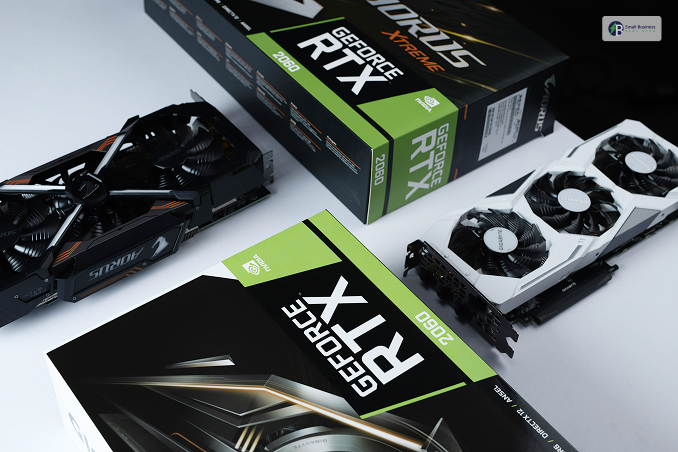
Furthermore, be aware that they all work slightly differently.
Sometimes, NVIDIA comes out of hibernation after a brief delay. What is more, AMD changes the locations of your windows, and Intel almost always recovers instantaneously.
What Are The Methods You Can Use To Restart Graphics Drivers?
If you are aware of how to reset graphics driver settings, it will be a huge help if your Windows 11 PC is giving you trouble.
Even if your screen is flickering or your game has frozen, you do not always need to end the session.
Check out the three best methods to keep your PC running smoothly.
Superfast Keyboard Trick
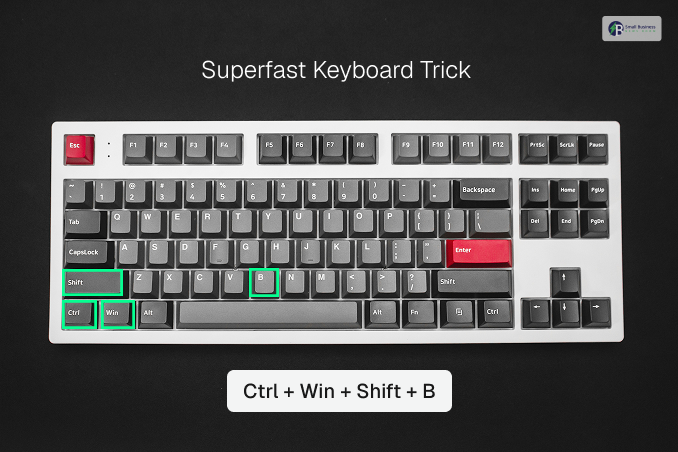
If you do not have time on your hands, this is the one trick you must know. With keyboard shortcut Ctrl + Win + Shift + B, you order Windows to reload the entire graphics system.
In general, your system will make a short “beep” sound, and your screen will blink.
This is totally okay! It actually indicates that your computer is refreshing its video memory and is reregistering the display pipeline.
It is an excellent initial step to unfreeze a system. Still, there is a chance that it will not work on high-end systems with very strict security policies.
Using Device Manager For More Control
The keyboard shortcut might not always be enough. If you want more control, the Device Manager will become your new best friend.
In this way, you even get to know exactly what is going on.
- First, right-click the Start button and choose Device Manager.
- Then, you locate Display adapters and click the little arrow to find your graphics card.
- Right-click the card and then choose Disable device. (Don’t panic if your screen changes for a moment! )
- After a few seconds, you can right-click the device again and select Enable device.
Turning it “off and on again” is hands down the most reliable trick. The reason is that the driver is being forced to reload entirely.
The Pro Method: PowerShell
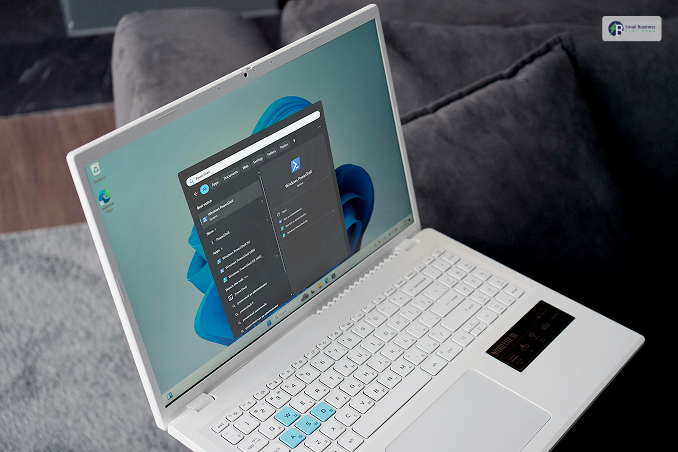
For the tech-savvy folks or those managing lots of computers at once, PowerShell is the way to go.
This method uses commands to remotely or automatically reset the driver.
You will need to open PowerShell as an Admin.
From there, you can use a command like Get-PnpDevice -Class Display | Disable-PnpDevice to turn the driver off, wait a few seconds.
Then use the Enable version of that command to bring it back to life. It is a powerful way to fix glitches without even touching a mouse!
These steps help keep your PC running smoothly and save you from a major headache, no matter which way you choose.
Reason Why You Need To Reset Your Graphics Card Drivers!
If your screen is misbehaving, for example, flickering, crashing, or running slow to the point of being irritating, do the first thing.
This resets the graphics driver software, clearing out bugs hidden inside that can be very annoying!
It won’t take long, and this way you’ll save yourself from spending the whole afternoon troubleshooting.
The Quick Keyboard Shortcut
The quickest and most direct way is to press Windows + Ctrl + Shift + B simultaneously. Your monitor will momentarily go black, and you may even hear a beep.
Don’t freak out! That’s just your PC communicating with the GPU, prompting a quick reset to get it back on task.
Using Task Manager
If this doesn’t work, try Task Manager (Ctrl+Shift+Esc). You are searching in the “Background Processes” column for any mention of NVIDIA, AMD, or Intel.
Then, right-click on those entries and choose “End Task.” Windows will notice they are missing and automatically revive them.
Power Up With PowerShell
If you want a more thorough refresh, right-click on the Start button and select PowerShell.
First, you can run a command to locate your device ID, then send the driver a restart signal to force it to reboot properly.
Yes, it looks like a complicated chord, but it is highly effective.
Vendor Software Settings
You may want to do this last, as it requires the installation of the most up-to-date driver from the official card makers like NVIDIA or AMD.
There is almost always a “Restore Defaults” or “Factory Reset” option in the control panel menu. Just a word of caution, you should restart your PC to ensure all changes take effect.
How Can You Install And Reinstall The Graphics Card Driver
Sometimes, a quick refresh is not enough. Especially if you’re switching between brands like NVIDIA and AMD.
You might need a fresh start. If your PC is still acting buggy, you might need a deeper fix than just knowing how to reset graphics driver settings.
Here is how to do a “deep clean”:
- Download DDU: Grab a free tool called Display Driver Uninstaller (DDU). It’s the best way to scrub away old, messy files.
- Enter Safe Mode: Hold the Shift key while clicking Restart. Follow the blue screens to Troubleshoot > Advanced > Startup Settings, then select Safe Mode.
- Clean and Restart: Open DDU, select your GPU brand, and click “Clean and Restart.”
- Reinstall: Once your PC reboots normally, visit the official NVIDIA or AMD site to download the latest driver.
What If The Graphic Card Still Shows Up?
If you have already tried learning how to reset graphics driver settings and even reinstalled everything, but things still feel broken.
Well, do not give up just yet! Sometimes, the problem lies a bit deeper in your system.
First, you need to try updating Windows or switching back to an older driver version. Choose the one that worked better.
Moreover, you could also update your BIOS to keep your motherboard happy. Additionally, you are trying to swap your video cable or test a different monitor.
You are likely dealing with a hardware fault. If the glitches persist after all these steps.
This means your graphics card might be failing and will need a professional repair.
How Can You Troubleshoot The Display Issues?
Often, your computer just needs a quick “nudge.” This can help to get its video settings back in order.
Thus, you need to know how to reset graphics driver software. This is the fastest way to clear out those glitches and get back to work.
The Quick Fix
The absolute easiest trick is using a simple keyboard shortcut. Just press the Windows key + Ctrl + Shift + B all at once.
You will likely hear a small beep and see your screen flicker for a second or two. This is totally normal!
Moreover, it just means your driver is refreshing itself without you having to restart the whole PC.
Here are important things you need to remember:
- Instant Refresh: This shortcut instantly clears temporary bugs.
- Fresh Start: If the shortcut does not work, you might need a tool to uninstall and reinstall the driver for a clean slate.
- Don’t Give Up: For really stubborn issues, restarting the driver is a great first step before checking for hardware damage.
Reset The Graphics Driver On Windows 10 And 11
Resetting graphics driver software is a total lifesaver, especially if your Windows 11 PC is playing up.
In fact, it is the quickest way to clear the ‘brain fog’ in your video card, i.e., fixing flickering, lagging animations, or sudden black screens.
Quick Fixes and Shortcuts
- The Magic Keys: Press Win + Ctrl + Shift + B. Your screen will blink and beep. That’s just the driver refreshing.
- Task Manager: Press Ctrl + Shift + Esc, locate processes of Intel, NVIDIA, or AMD, and click “End Task” to restart forcefully.
Advanced Resets
- Device Manager: Locate your GPU under “Display Adapters”, right-click it, and select Disable. After a few seconds, re-enable it.
- PowerShell: Run commands such as pnputil /restart-device for a thorough, technical refresh.
- Vendor Software: You can use NVIDIA Control Panel, AMD Adrenaline, or Intel Graphics Command Center to “Restore Defaults.”
More Troubleshooting
If these still do not work, use DDU (Display Driver Uninstaller) in Safe Mode for a “Deep Clean” of the driver.
In case of frequent crashes, such as Error Code 43, you may need to perform:
- A BIOS update,
- Replace your video cable,
- Determine whether your graphics card is physically faulty.
Do not forget to save your work first, since resetting can also close games or video editors unexpectedly.
Check Also: Melanie From Craigscottcapital: How She Made An Impact On The Finance Sector!
Can I Reset The Graphics Driver Through The Keyboard?
Do not stress if you notice your screen acting weird on Windows 10 or 11. Do not stress!
You must learn how to reset graphics driver settings. It is often the quickest way to get back to work.
While it might feel a bit scary when your screen goes black for a second, it’s just your computer’s way of hitting the “refresh” button.
Using Device Manager
You can use Device Manager for a more in-depth fix if a quick shortcut doesn’t work.
- Locate your card: First, open Device Manager and find “Display Adapters.”
- Uninstall: Right-click your graphics card, then choose “Uninstall Device.”
- Clean sweep: Once the uninstall process is complete, make sure to check the box labeled “Delete the driver software.” This can help to wipe the slate clean.
- Restart: Lastly, once you reboot, Windows will try to give you a fresh start.
Why The Beep?
Do not be startled if you hear a beep or see a flicker! These are just signs that your system is successfully refreshing the driver.
You can always use the NVIDIA Control Panel to fine-tune your settings and keep everything running smoothly, if things still feel laggy.
How To Deal With The Flickering Screen?
To begin with, your graphics software needs to be maintained properly at all times. That is basically the secret.
Most of the time, when a gadget starts misbehaving, it is due to it being outdated or to disorganized settings.
This is where understanding how to reset graphics driver settings can really help both your digital and real life as a whole.
Rather than letting your mood go down, you might as well just do a quick give it a shot.
Also, keep in mind that the steps will not be exactly the same each time. This depends on which video card brand you have on your computer system: NVIDIA, AMD, or Intel.
By following the correct procedure for your device’s model, you won’t just get rid of those bugs. Your Windows 11 will continue running smoothly and quickly.
It is one of those little things that spare you from a great deal of time-wasting!
When And Why Do You Need To Refresh The Graphics Driver?
Just a quick refresh might not cut it if you are an AMD user or dealing with a frozen screen.
In fact, when the problems become so bad that even a persistent flicker refuses to go away, resetting your graphics driver settings by doing a “deep clean” should be the way to get your PC running smoothly.
Using The Right Tools
If the regular Windows settings don’t work, it’s time to use the power tools. Display Driver Uninstaller (DDU) is just great for that.
DDU fully removes all the leftover files so you can have a clean start.
Here is what you will get:
- The Black Screen: Don’t worry! The screen will most likely turn black briefly when the driver is being uninstalled. This is the usual thing to happen during this procedure.
- Automatic Help: When the old driver is no longer there, Windows often attempts to reinstall a very basic one for you. This happens automatically.
- Manual Install: You can visit the NVIDIA, AMD, or Intel website to download and install the latest version yourself for the best performance.
By just doing these steps, you can make sure the hardware and software are in perfect sync again!
Related Resource: Discover The Best PC Gaming Experiences At Eurogamersonline.com PC Gaming