


Table Of Contents
- What Is 10.0.0.0.1?
- How Do You Log In To 10.0.0.1? The Guidance
- Step 1: Connect to Your Network
- Step 2: Open a Web Browser
- Step 3: Type the IP Address
- Step 4: Enter Login Credentials
- Step 5: Open the Admin Panel
- Default Router Login And Password
- What Happens When You Can’t Connect To 10.0.0.1?
- The Real World Scenario Of Using 10.0.0.0.1 Gateway
- Home Networking
- Office Environments
- Gaming Setups
- Common Issues While Accessing 10.0.0.0.1 Gateway: Ways You Can Fix It!
- 1. “10.0.0.1 Refused To Connect”
- 2. “10.0.0.1 Took Too Long To Respond”
- 3. Incorrect Client Address (IP Conflict)
- 4. Incorrect Device Address (The Infamous Typo)
Unlocking the 10.0.0.0.1 Gateway: Your Router’s Secret Door
Last Updated on: September 1st, 2026
Ever stumbled upon the term “10.0.0.0.1” while setting up your Wi-Fi or troubleshooting your router? Don’t worry; you’re not alone. It’s a common misconception that 10.0.0.0.1 is an actual IP address.
To be accurate, it’s probably a typo for 10.0.0.1. But what is 10.0.0.1? Well, it is a private IP address many routers use as a default gateway. You can think of it as the leading portal. This helps you connect your devices to your home network and eventually to the internet.
In this blog, we’ll learn what 10.0.0.1 is all about, how to use it to access the settings of a router and troubleshoot the possible issues one might face.
Whether you are a tech wizard or a casual user, we will keep things simple so that you can quickly master your network.
What Is 10.0.0.0.1?
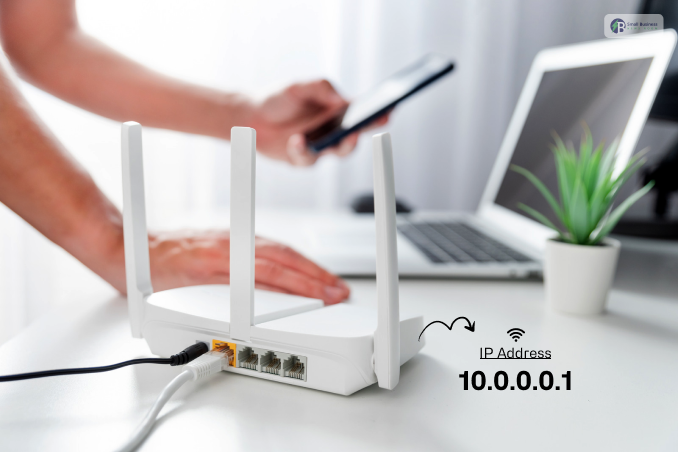
You’ve probably heard of the IP address 10.0.0.1. It’s a unique address used for your home or office network, not on the public internet. Think of it as the secret entrance to your router’s control panel.
Most routers, such as Comcast routers, have 10.0.0.1 as the address for you to log in and set various settings. That is how you would strengthen your Wi-Fi, block access to certain websites, or even create guest networks.
Important note: Double-check the address! It’s 10.0.0.1, not 10.0.0.0.1.
If you do not know your router’s actual address, never fear; it’s easily found. In Windows, open the Command Prompt and type “ipconfig.” In Mac, open Terminal and type “ip route | grep default.” The address labeled “Default Gateway” is the one you want.
While 10.0.0.1 is standard across enterprise hubs, it is most commonly used as the default hardware gateway for network manufacturers. This includes Arris, Technicolor, Netgear, and Comcast/Xfinity routers.
Knowing your specific brand architecture makes configuring internal local networks substantially faster.
How Do You Log In To 10.0.0.1? The Guidance
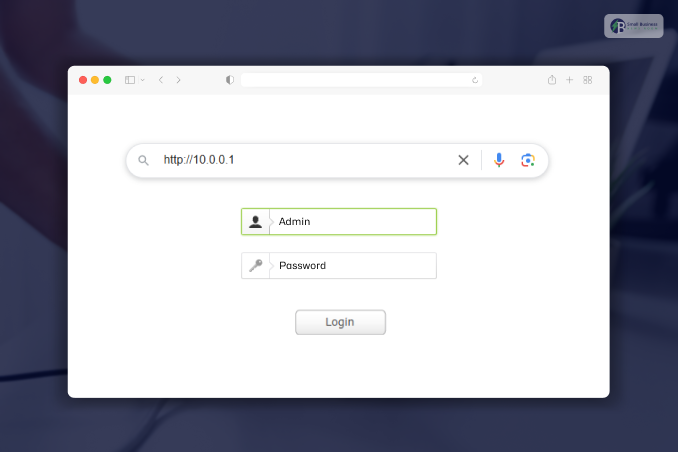
Accessing 10.0.0.1 is simple if it’s the default gateway of your router. Here are the detailed steps to log in:
Step 1: Connect to Your Network
Ensure your devices, such as your laptop, smartphone, or PC are connected to the router’s network. This can be done through:
Wi-Fi: You must connect to the router’s wireless network using its SSID (network name).
Ethernet Cable: As for the ethernet cable, you have to connect one end of the cable to your device. Now, connect the other to the router’s LAN port for a stable connection.
Step 2: Open a Web Browser
Once you are done connecting to your network, you can open a web browser like Google Chrome, Mozilla Firefox, or Microsoft Edge. However, you have to make sure your internet browser is updated to prevent compatibility problems.
Step 3: Type the IP Address
Are you done with the first two steps? Then you can proceed by typing 10.0.0.1 in the address bar of the browser. After that, press Enter. In this step you have to ensure you do not add extra characters, such as spaces or commas, as this will result in an error.
Step 4: Enter Login Credentials
You will see a login prompt asking for a username and password. Refer to your router’s label or manual for these default credentials. There are some common combinations include:
Username: admin
Password: password
If the defaults aren’t working, try other combos in the manual for the router or see if someone changed them previously.
Critical Cybersecurity Advisory: Keeping factory-default login settings (like admin/password) exposes your local area network to severe security exploits.
Once you access the dashboard, go to System Settings or Maintenance and immediately replace the default values with a unique, strong admin password.
Step 5: Open the Admin Panel
After a successful login, you’ll land on the router’s admin dashboard. From here, you can:
- Firstly, change your Wi-Fi password or SSID (network name).
- Secondly, update the firmware to ensure the router runs the latest version.
- Lastly, try to configure advanced settings, such as port forwarding or parental controls.
- Switch Wi-Fi encryption modes between WPA2 and WPA3 protocols to block external network intrusion.
- Adjust Wi-Fi channels (2.4 GHz, 5 GHz, or 6 GHz bands) to minimize signal interference from surrounding devices.
- Manage operation environments by toggling your hardware between standard Router Mode, Bridge Mode, or a localized Access Point (AP).
Now, if you face any issues during these steps, refer to the troubleshooting section below.
Your Core Dashboard Security Checklist:
- Disable Remote Management: Turn off this feature so no one can access your login screen over the public internet.
- Change the Default SSID: Rename your Wi-Fi network so it does not reveal your router’s brand or model to outsiders.
Disable WPS (Wi-Fi Protected Setup): Turn off WPS PIN authentication, as it is highly vulnerable to brute-force hacking tools.
Default Router Login And Password
Most of the routers come with a default login ID and password. So, if you haven’t made any kind of changes, then here are some common combinations for you. Read on…
| Router Brand | Default Username | Default Password |
| Cisco | admin | admin |
| Netgear | admin | password |
| TP-Link | admin | admin |
| D-Link | admin | admin |
Now, if none of these are working for you, in that case, you can check the back of your router. There, you can find a sticker with the credentials that you need. You can even consult the user credentials.
What Happens When You Can’t Connect To 10.0.0.1?
10.0.0.1 is a shared IP address you can often use as a default gateway for devices on a local network. Now, let’s say you cannot connect to it; what does that mean? Well, specifically that means that there are some kind of issues with your network configuration. Still confusing? Let me break it down for you!
- Gateway issues: The gateway becomes inaccessible. This can usually occur due to router failure, incorrect network configuration on the device that you are using, or maybe an issue with the network cable between your device and your router.
- Network issues: in this case, there can be issues general network. This can include a bad ISP connection, faults in your Wi-Fi signal, or maybe some temporary internet outage.
Now the question comes, how to deal with such issues? Well, I have an easy solution for that as well.
In the following, I will provide you with some actionable troubleshooting steps that you can easily follow:
- First, you must start by checking all your connections. How to do that? Start by ensuring that all cables are correctly plugged into your device and your router. Then, you must check your wifi signal strength and try to move closer to your router.
If none of these are working, then restart your router and your device. This would help you to fix all the glitches.
If typing 10.0.0.1 consistently returns a “Connection Timed Out” error, your network might be mapped to a completely different class of private IP structures. Try entering alternative universal gateway addresses in your URL bar, such as http://192.168.1.1, http://192.168.0.1, or http://192.168.1.254, to see if they wake your hardware’s login screen.
- Secondly, you must check your network settings. You must ensure that your device is getting a dynamic IP address and that the default gateway is 10.0.0.1 indeed.
If the issue persists, you must contact your internet service provider to report the problem and further debug your connection.
By going through these steps, you can almost always determine what is causing the connectivity issue and get back online quickly.
The Real World Scenario Of Using 10.0.0.0.1 Gateway
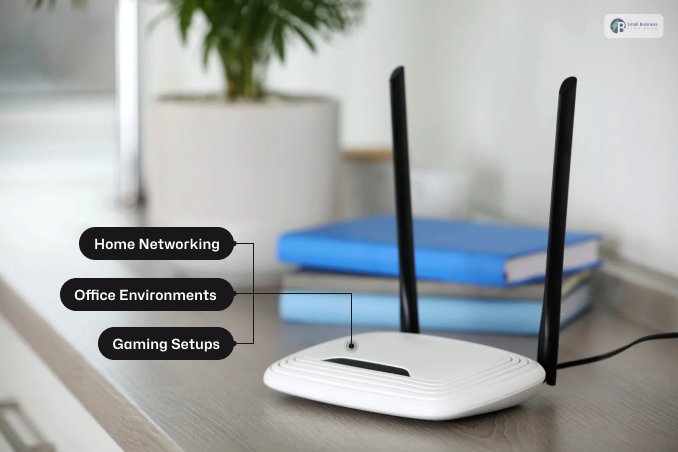
In the real world, 10.0.0.1 is essential in managing home and office networks, mainly for users with Xfinity and Comcast routers. Here’s a closer look at its practical applications:
Home Networking
Many households rely on 10.0.0.1 to access their router’s admin panel for essential tasks. Home users frequently log in to change their Wi-Fi passwords, adjust the network name (SSID), or enable security settings.
It’s also often used to apply parental controls, ensuring children’s online activities are safe and age-appropriate.
Office Environments
In offices, IT administrators use 10.0.0.1 to maintain complicated configurations of networks. They keep an eye on connected devices, prioritize tasks that are crucial for bandwidth usage, and troubleshoot network outages.
It acts as the central hub with which multiple devices connected to the local network are managed.
Gaming Setups
Gamers often use 10.0.0.1 to optimize their game. This enables port forwarding which makes online gaming even better. Moreover, it helps in reducing lag and providing better connection stability. Other users would instead prioritize traffic, so their games are not affected by other resource-intensive activities on the network.
Whether for casual use or advanced network management, 10.0.0.1 is a potent tool for keeping networks running smoothly and efficiently.
Common Issues While Accessing 10.0.0.0.1 Gateway: Ways You Can Fix It!
Users encounter numerous problems when accessing IP address 10.0.0.1, including connection failures or pages that fail to load.
At the same time, advanced users face issues that may not seem scary but are quite annoying, including the following:
- “10.0.0.1 Refused to Connect”
- “10.0.0.1 Took Too Long to Respond”
- “Incorrect Client Address (IP Conflict)”
- “Incorrect Device Address (The Infamous Typo)”
Below are the explanations and solutions to these errors:
1. “10.0.0.1 Refused To Connect”
Users trying to access the address may notice that nothing works because someone does not have a device with this IP address on their network.
If the user has a router with a different gateway, they cannot access it via 10.0.0.1.
- The Solution:
Using CMD (Command Prompt), they can check if there are devices in the network that have this IP address.
To do this, they need to launch CMD, type ping 10.0.0.1, and click Enter. After doing this, the user will receive a response that there is no connection because no devices are connected to the network.
In this case, the router’s correct gateway is 192.168.1.1 or 192.168.0.1.
2. “10.0.0.1 Took Too Long To Respond”
Most often, this happens because of a large amount of data, which can cause the router and other devices to experience issues.
This can also happen because power failures in the area cause many devices to malfunction.
- The Solution:
In this case, the user should check the hardware because the problem may be with the computer or the router itself.
The user should turn off the router for about 30 seconds, then turn it back on. Follow the same procedure with the computer or phone.
3. Incorrect Client Address (IP Conflict)
In this case, many users tend to forget that while all their devices (including a phone, laptop, and TV) are assigned an IP address automatically by the DHCP server, they cannot use the address 10.0.0.1.
At the same time, on the user’s network, aside from the router, no other device should have the same IP address.
This is because it will cause a conflict and prevent access to the desired page.
- The Solution:
In this case, the user needs to disconnect the device (that has the same IP address as the router) from Wi-Fi and reconnect it to the network so that it receives a new address.
In Windows, you can do the same by typing ipconfig /release and ipconfig /renew in CMD.
4. Incorrect Device Address (The Infamous Typo)
This is one of the simplest and most common mistakes. In this case, users tend to miss numbers when typing the IP address 10.0.0.1.
Sometimes the 1 is mistaken for 0. It is not surprising that the address is much more likely to stop working in this case.
- The Solution:
First, check the address in the browser’s address bar to see whether there are any extra numbers or symbols.
One of the most common mistakes is typing 10.0.0.0.1 gateway instead of 10.0.0.1.
An IPv4 address should always contain 4 numbers separated by dots, and the user may have made a mistake with the number of characters.
Read Also:


